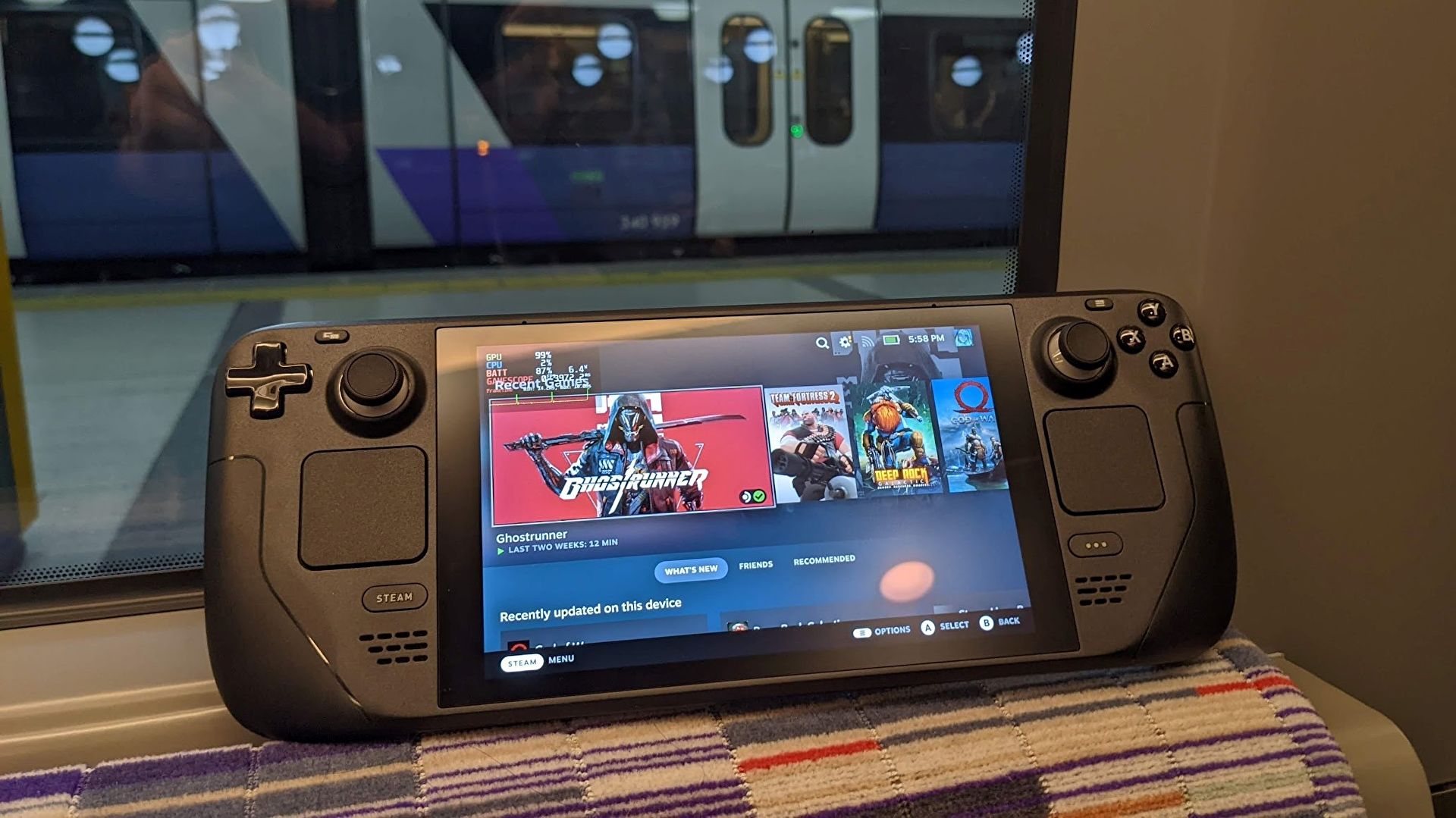
How to Play Switch Games on Steam Deck

Here's how I got Switch games working on Steam Deck, complete with pictures to guide you through.

Playing Switch games on Steam Deck isn’t as easy as setting up other disc-based systems. With the Switch, you’ll need to dump your key files, firmware, and games yourself through a modded Switch. In this guide, I’ll provide you with an outline of the setup process and the necessary steps to play Switch games on Steam Deck.

Before We Start

Playing Switch games on Steam Deck requires a modded Nintendo Switch. However, due to concerns about piracy and legal implications, we cannot provide specific instructions on modding or obtaining the required files. We recommend following official guides and considering the legal aspects before proceeding. We will provide guidance for the remaining setup process.

Checklist of Requirements

Before starting the setup, make sure you have the following:

  1. A modded Nintendo Switch.
  2. An SD card to transfer data and games.
  3. A method to transfer files to Steam Deck, such as a USB stick, dock, or Windows PC.
  4. A Steam Deck with EmuDeck installed.

Step 1: Boot into Desktop Mode
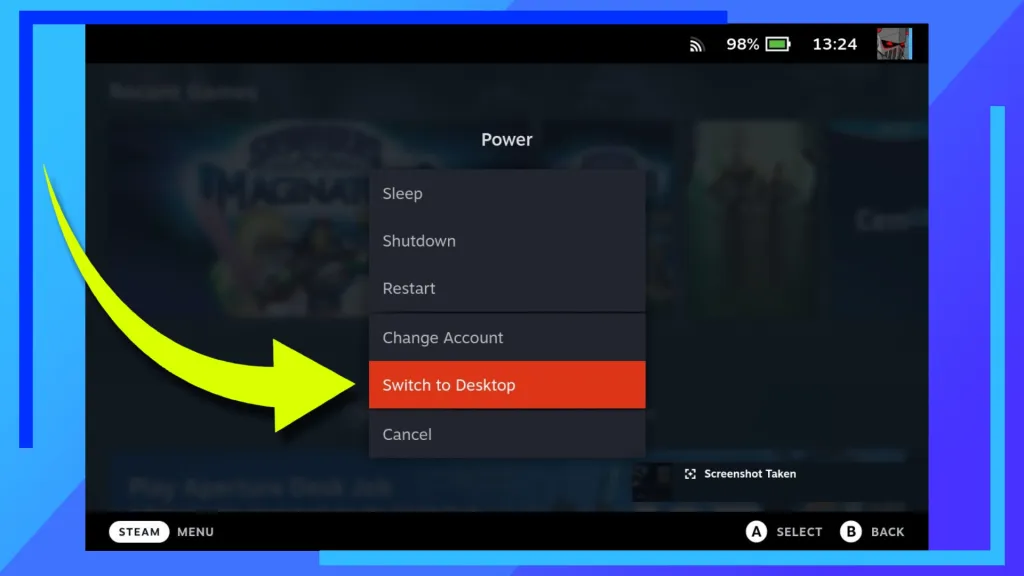
To begin, boot your Steam Deck into Desktop Mode. Once the Steam Deck has loaded, hold down the Power Button until the menu appears. Click on “Switch to Desktop,” and the Steam Deck will reboot into the desktop environment.

Step 2: Install EmuDeck
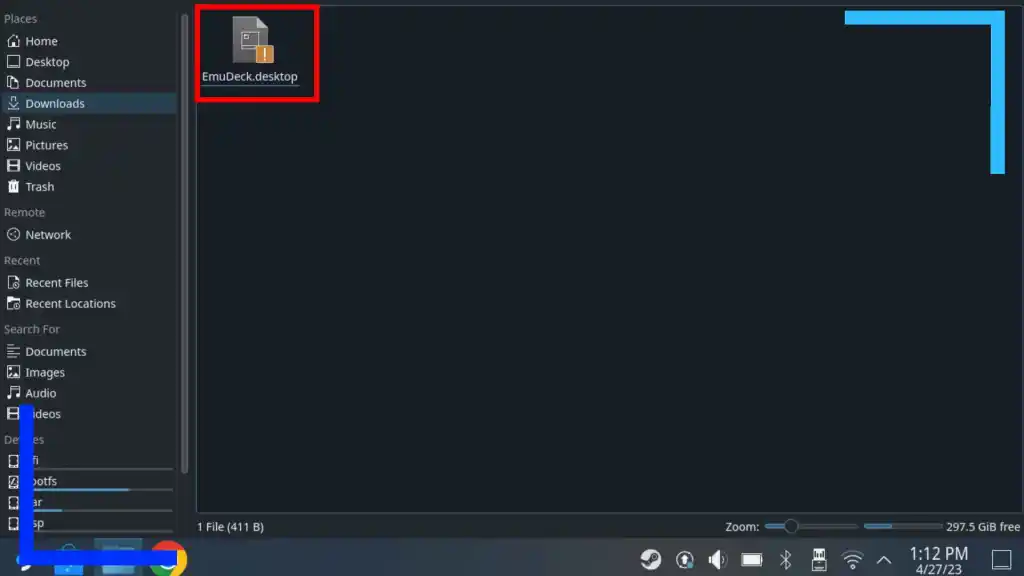
To install EmuDeck on your Steam Deck, you will need either the Firefox or Chrome Internet browser. You can download these browsers from the Discover Store. Once installed, open the browser and navigate to the EmuDeck website. Download the EmuDeck installer file from the website.

Using the Dolphin File Explorer on Steam Deck, locate the downloaded file in your downloads folder. Execute the file, and follow the on-screen instructions to install EmuDeck and the Switch emulators (Yuzu and Ryujinx) onto your Steam Deck.

Note: During the installation process, you may be asked if you want to transfer your ROMs via a USB stick. If you have your Switch games on a USB stick or a connected dock, you can transfer them at this point.

Step 3: Obtain the Title Keys, Prod Keys, and Firmware

Obtaining the necessary files for playing Switch games on Steam Deck is a critical step. However, due to legal restrictions and concerns, we recommend following official guides, like the Yuzu guide, to obtain these files from your modded Nintendo Switch.

Ensure that you are aware of your local laws and regulations regarding modding and file usage. It’s essential to respect intellectual property rights and avoid any illegal activities.

Modding your Switch may result in a console ban, so exercise caution. Follow the modding guides carefully and refrain from using pirated games or playing online with active mods to minimize the risk of being banned.

Once you have obtained the required files, proceed to the next step.

Step 4: Installing Title Keys, Prod Keys, and Firmware – Ryujinx
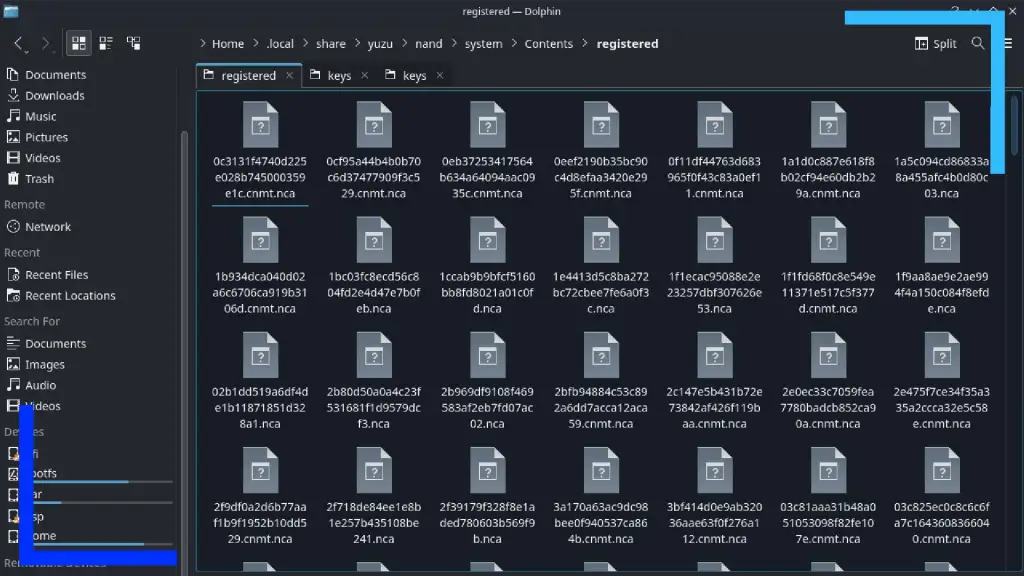
To install the Title Keys, Prod Keys, and firmware on Ryujinx, transfer the files to your Steam Deck. You can use Warpinator, a wireless file transfer tool, to simplify the process. Copy the key files to the Switch’s microSD card, insert the card into a Windows PC, and use Warpinator on both the PC and Steam Deck to transfer the files wirelessly.

Once the files are transferred, access the Ryujinx keys folder through the Dolphin file explorer. You can find the keys folder in the following paths: Primary > Emulation > bios > Ryujinx > keys or Home > .config > Ryujinx > system. Copy the key files to the Ryujinx system folder.
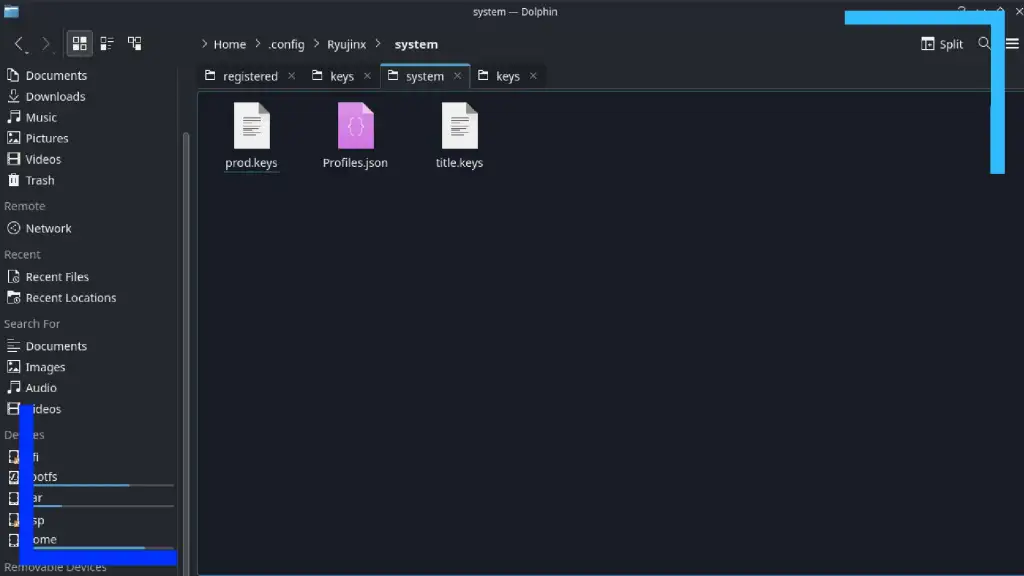
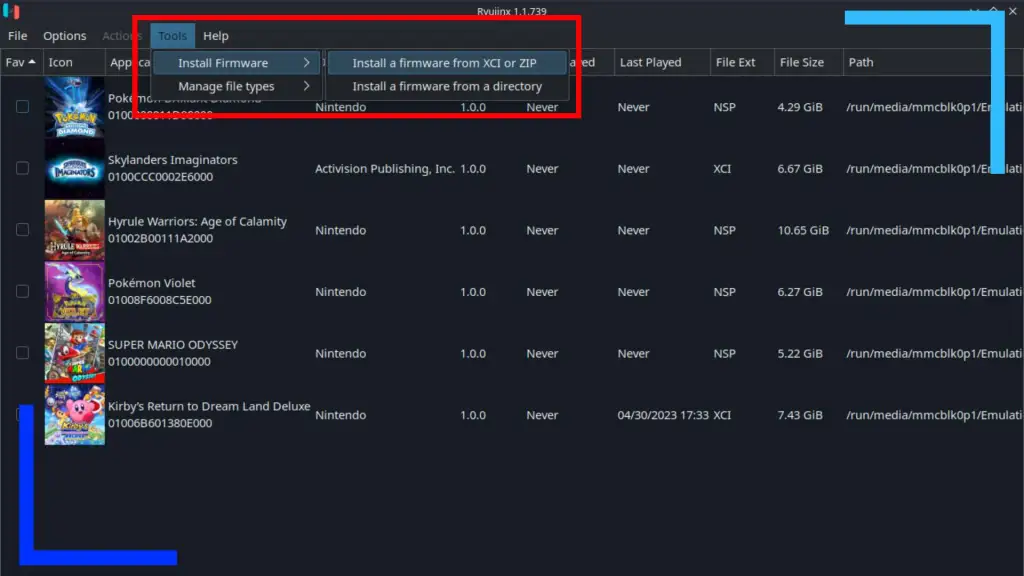
Install the Switch firmware in Ryujinx by following the provided guide. Launch Ryujinx, go to Tools, select Install Firmware, and choose the appropriate option based on how your firmware file is stored. Install the firmware, and Ryujinx will set up the necessary configurations.

Step 5: Installing Title Keys, Prod Keys, and Firmware – Yuzu

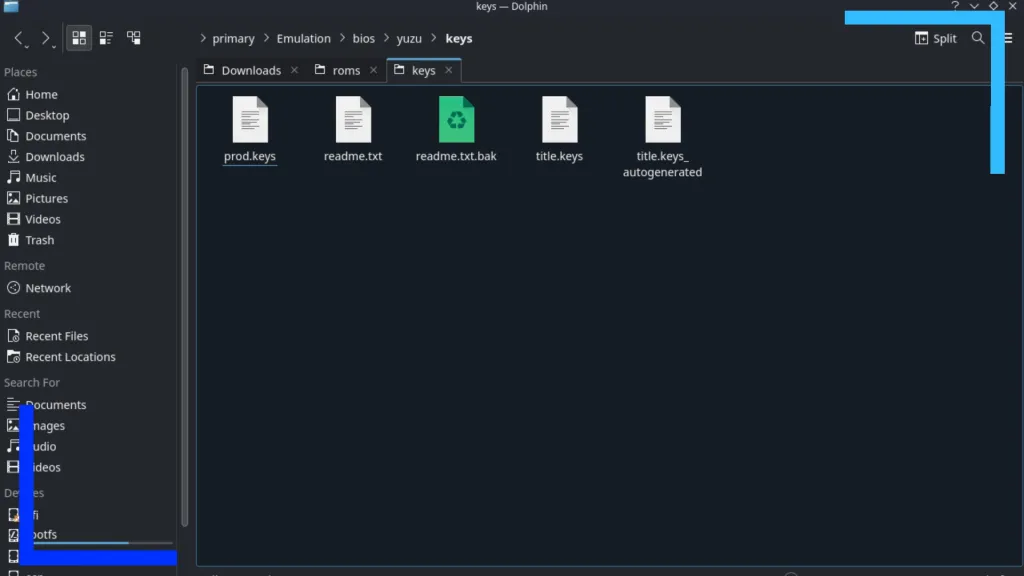
For Yuzu setup, follow a similar process as Ryujinx. Copy the key files to the Yuzu keys folder, which can be located at Home > .local > share > yuzu > keys or Primary > Emulation > bios > yuzu > keys. Ensure that all the key files are correctly placed in the folder.
Transfer the Switch firmware to the Steam Deck using Warpinator or another file transfer method. Extract the firmware if it is compressed or zipped. Copy all the NCA files from the firmware folder and paste them into the appropriate location for Yuzu: Home > .local > share > yuzu > system > Contents > registered.
With the keys and firmware set up, Yuzu is ready to run Switch games on Steam Deck.

Step 6: Transferring Switch ROMs

To play Switch games on Steam Deck, you need to transfer your ROMs to the device. The Switch ROMs folder can be found at Primary > Emulation > roms > switch on Steam Deck. You can use EmuDeck or Warpinator to transfer the ROMs from your USB stick or another connected device to the Steam Deck.
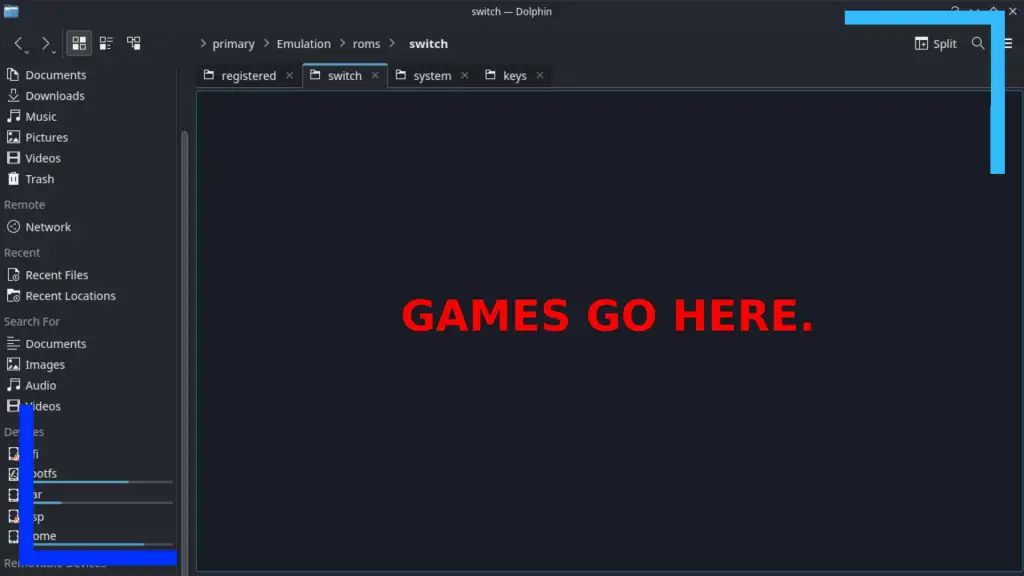
Ensure that you have legally obtained the ROMs you wish to play. Transfer the ROMs to the Switch ROMs folder, and they will be automatically detected and accessible in both Yuzu and Ryujinx.

Nintendo Switch Performance on Steam Deck

The performance of Switch games on Steam Deck varies depending on the specific game and the capabilities of the emulators (Yuzu and Ryujinx). Emulation for the Nintendo Switch is still relatively new and may not be as optimized as other systems like the Wii U or PS2.

Before playing a game, it’s recommended to check the compatibility pages of Yuzu and Ryujinx to determine the performance and any potential issues with specific games. Compatibility can vary, with some games running flawlessly, others having minor problems, and some being unplayable.
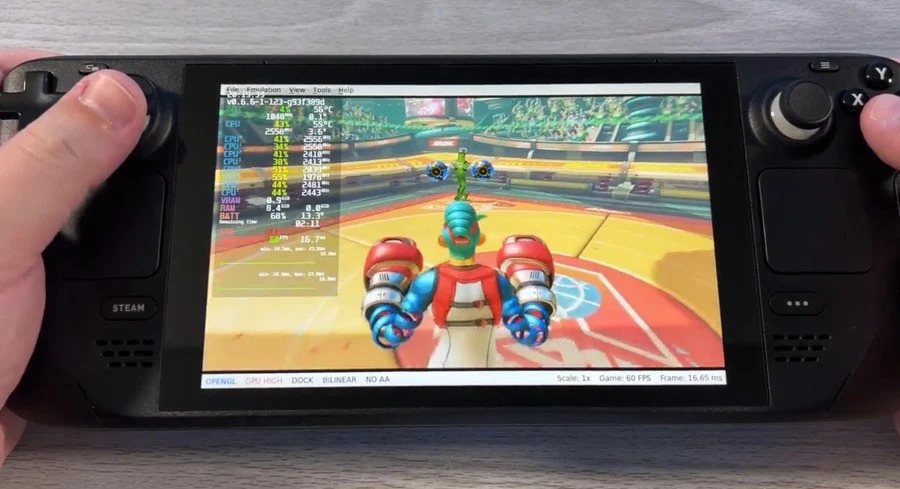
Based on personal testing, performance varies on a case-by-case basis. Smaller games like certain Pokémon titles run fine, while more demanding games may have performance limitations. For example, Mario Odyssey runs relatively well on the Steam Deck.

Overall, playing Switch games on Steam Deck offers an exciting opportunity to enjoy your favorite titles on a different platform. Follow the outlined steps and guidelines, and remember to respect the intellectual property rights and legal boundaries associated with modding and game emulation.

Conclusion

With the steps outlined in this guide, you should be able to set up and play Switch games on your Steam Deck. Remember to follow legal guidelines, respect intellectual property rights, and ensure that you own the games you are playing.

Emulation on the Steam Deck offers a new level of flexibility and versatility, allowing you to explore a wide range of gaming experiences. Enjoy the freedom of playing Switch games on a powerful handheld device like the Steam Deck!

FAQs (Frequently Asked Questions)

  1. Can I play all Switch games on Steam Deck?
    • The compatibility of Switch games on Steam Deck varies. Some games run well, while others may have performance issues or be unplayable. Check the compatibility pages of Yuzu and Ryujinx for specific game information.
  2. Is modding a Switch legal?
    • Modding a Switch can have legal implications. Ensure that you understand your local laws and regulations regarding modding and piracy. Follow official guides and avoid engaging in activities that may infringe upon intellectual property rights.
  3. Can I transfer Switch games from a USB stick to Steam Deck?
    • Yes, you can transfer Switch games from a USB stick to Steam Deck. Use EmuDeck, Warpinator, or other file transfer methods to copy the games to the Switch ROMs folder on Steam Deck.
  4. Will playing Switch games on Steam Deck result in a console ban?
    • There is a risk of console bans when modding a Switch. Follow modding guides carefully, avoid using pirated games, and refrain from playing online with active mods to minimize the chances of being banned.
  5. How does Steam Deck performance compare to the Nintendo Switch?
    • The Steam Deck offers more powerful hardware than the Nintendo Switch, which can lead to improved performance in some cases. However, individual game optimization and emulation capabilities can affect performance on a game-by-game basis.


Social Media

Most Popular

Get The Latest Updates

Subscribe To Our Weekly Newsletter

No spam, notifications only about new products, updates.
On Key

Related Posts

Fixing MTG Arena Friends List Not Working

The MTG Arena friends list may stop working for a few common reasons: friend requests fail, a display name or five-digit number does not match exactly, Direct Challenge or Challenge Lobby screens get stuck, the social panel shows outdated information, or Arena is dealing with a server-side issue. If you are trying to add friends, receive requests, or start a match and nothing behaves the way it should, the usual fixes are checking the exact account name and number, restarting the client, updating the game, and making sure your network connection is stable. The MTG Arena friends list is supposed to make playing with friends simple: add a player, send a challenge, pick decks, and start the match. When it works, great. When it does not, you get the full Arena social experience: missing friend requests, stuck challenge screens, mismatched names, and two players staring at menus while insisting they definitely typed everything correctly. Most MTG Arena friends list problems fall into a few buckets. The friend request will not send. The friend does not appear. The display name or five-digit number is wrong. Direct Challenge or Challenge Lobby invites get stuck. The social panel shows outdated information. Or the entire friends list behaves like it has been hit by a very legal, very annoying bounce spell. Wizards has also acknowledged multiple social and challenge-related issues over time, including Direct Challenge mismatched-option behavior, friend requests lingering after acceptance, challenge animations looping, and friend challenge UI problems. So if you are having trouble, it is not always user error. Sometimes the client is simply doing Arena things. This guide focuses on the fixes that matter most to players dealing with friends list and challenge problems, from basic checks and cache clearing to advanced network troubleshooting, bug reporting with logs, and a few habits that help keep the feature working reliably. https://magic.wizards.com/en/mtgarena Gathering Arena Friends List Context The friends list in MTG Arena is tied to your Wizards account display name, your five-digit identifier, the client’s social menu, and the current challenge system. Older guides and many players still say “Direct Challenge,” while newer Arena updates introduced Challenge Lobbies, which unified Friend Challenge and Direct Challenge into one lobby-style system. Wizards announced Challenge Lobbies as a social feature upgrade that lets players create lobbies from the Challenges section of the social menu or invite online friends from the friends list. That matters because some troubleshooting depends on which flow you are using. A friend request issue is different from a challenge issue. A display name problem is different from a server-side social outage. And a challenge that will not start may have nothing to do with your friends list at all. Start with the simplest explanation first. Check spelling, restart the client, confirm the game is updated, then move into cache, reinstall, logs, and support. Quick Checks For MTG Arena Friend List Before deleting files or reinstalling anything, run through the basic fixes. They are boring, yes. They also solve a surprising number of Arena problems, which is somehow both comforting and irritating. First, restart MTG Arena completely. Do not just return to the home screen. Close the client, wait a few seconds, and relaunch it. On mobile, force close the app and reopen it. Next, check the official MTG Arena status page. The status page tracks platform and service components such as Windows, macOS, Android, iOS, Game, Logins, Matches, Social, and Store. If Social, Logins, or Matches are degraded, your friends list may not behave normally no matter what you do locally. Then update the game. If Arena is asking for a small download or restart after a patch, both players should update before trying to add friends or challenge each other. Wizards notes that update and install problems can come from network issues, Windows-level problems, or leftovers from a partial install. Finally, confirm your network is stable. If Arena loads slowly, hangs on menus, or disconnects often, the friends list may only be a symptom. On mobile, Wizards recommends checking the device’s internet connection, toggling Wi-Fi off and on, restarting the device, force closing background apps, updating the app, and reinstalling if needed. Troubleshoot: Add Friends And Display Name Issues Most failed friend requests come down to the display name. Friends list issues in MTG Arena are common because Arena is strict about username formatting. MTG Arena names are not just “PlayerName.” They include the visible display name plus a five-digit number, usually shown in the format DisplayName#12345. Wizards’ Direct Challenge FAQ says players need both the display name and the five-digit number associated with the account. It also notes that display names are case sensitive, which means DragonFan#12345 and dragonfan#12345 may not be treated the same. Check these details before assuming the friends list is broken: Make sure the display name is typed exactly as shown. Confirm capitalization. Confirm the five-digit number separately. Do not include extra spaces before or after the name. Make sure your friend is sending you the correct account name, not the name from an old or secondary account. That last point matters. Wizards explains that two accounts can have the same display name text but different five-digit identifiers, such as SameDisplayName#12345 and SameDisplayName#54321. If a player accidentally logs into or creates a secondary account, the friends list lookup will not point to the account they actually use. The safest method is to have your friend copy their full Arena name from the client and send it to you outside the game. If they type it manually, ask for a screenshot. It feels overly cautious until you lose ten minutes to one lowercase letter. Step-by-Step: Add Friends To add a friend in MTG Arena, use the friends list panel rather than guessing from the main Play menu. Open the Friends List panel, usually found at the bottom-left of the Arena client. Click the plus sign at the top right of the friends list. Enter the exact Arena username for the person you want to

Cheap MTG Cards: Budget Options for Magic Collections

Cheap MTG Cards are not just for new players. They are for Commander brewers, cube builders, collectors who like having options, and anyone who has ever looked at the price of one land and thought, “Surely cardboard has gone too far.” The best budget strategy is not one single source. It is a mix. Use real singles when you need tournament legality, use lots when you want volume, use proxies for casual testing, and use ready-made cube products when you want a complete play experience without turning your evenings into spreadsheet maintenance. Gathering Cards: Cheap MTG Cards Sources The cheapest MTG collection strategy usually breaks into four lanes. ProxyMTG.com is a strong choice for bulk budget proxies and on-demand printed proxy cards for casual use. Print-at-home proxies are the cheapest overall route if your group allows them and you already have a printer. PrintACube.com is worth considering if you want a ready-to-draft 540-card cube near the $100 mark. For authentic cards, compare singles against bulk lots before buying, because “cheap” can mean very different things depending on your goal. Singles are better when you need specific cards. Lots are better when you want maximum cardboard per dollar. Proxies are better when you want to test decks or protect expensive originals. Cubes are better when you want an entire repeatable format in one purchase. ProxyMTG.com And Bulk Proxies ProxyMTG.com is one of the better budget options for players who want bulk proxies and on-demand printing. The value improves as order size increases, which matters if you are printing a Commander deck, testing multiple decks, or building a cube. Before ordering from any proxy seller, check the reputation, production samples, card feel, customer photos, and shipping policies. Good proxy cards should be clearly treated as proxies, not as tournament-legal originals. They should also be readable, consistent in size, and easy to sleeve. Also check delivery times and shipping costs before buying. A low per-card price can get less exciting once shipping, tracking, taxes, and rush fees join the table like an uninvited combo player. Print At Home: Cheapest Route Printing proxies at home is usually the lowest per-card cost. It is not the prettiest option, but it works well for deck testing, kitchen-table Commander, cube prototypes, and deciding whether a card is actually good before spending money on the real version. For better durability, print on heavier cardstock or print on paper and sleeve the proxy in front of a bulk card. The sleeve and backing card do a lot of the work. You are not trying to create a museum object. You are trying to remember whether your seven-mana dragon is playable or just emotionally persuasive. Check local event rules before using printed proxies. Home-printed cards are fine for many casual groups, but sanctioned Magic events require authentic cards except for judge-issued proxies in narrow tournament situations. PrintACube.com Cheap Cube Option PrintACube.com is a useful shortcut for players who want a full cube without buying hundreds of individual singles. Its headline value is the ability to get a complete 540-card cube around $100, which is hard to beat if your goal is draft nights rather than collecting originals. This is especially attractive for cube beginners. Building a cube from scratch can be fun, but it also means choosing archetypes, balancing colors, sourcing cards, sleeving everything, and updating the list over time. Buying a ready cube skips a lot of that work. If your playgroup wants a repeatable draft experience and does not care whether every card is an authentic original, a ready-made proxy cube can be one of the most cost-efficient MTG purchases you make. Buying Singles Vs Lots Buy singles when you need exact cards. This is the right move for Commander staples, missing lands, sideboard cards, or format-specific pieces. Singles reduce waste because you are not buying 800 random cards to find three that matter. Buy lots when you want volume. Bulk lots are useful for new players, casual deckbuilding, school clubs, cube experiments, and anyone who wants a pile of commons and uncommons for cheap. Just understand that most lots are not secretly filled with expensive staples. Sellers also know how Google works. Compare per-card prices across multiple sellers. A $20 lot of 1,000 cards sounds great, but if shipping is $18 and the lot is mostly duplicate draft chaff, the value may be less impressive. On the other hand, a well-sorted lot with lands, tokens, commons, uncommons, and usable rares can be a great starter purchase. Local Sources And Community Local game stores are still one of the best places to find cheap MTG cards. Many stores have bulk boxes, discounted binders, damaged-card bins, and low-cost singles that are not worth listing online. Trade nights can be even better. Bring cards you do not use and trade into cards you actually need. For budget players, trading is often more effective than buying because you are converting dead collection value into playable cards. Also scan Facebook Marketplace, local classifieds, and community groups regularly. Collections appear when players move, quit, clean out closets, or decide that they have too many white storage boxes. Which, to be fair, is all of us eventually. MTG Cards: Quick Buying Tips Compare market prices across major trading sites before you buy. Do not rely on a single listing. One seller asking $12 for a $3 card does not make the card $12. It makes that seller optimistic. Check seller photos for condition accuracy, especially on older cards, foils, and higher-value staples. “Lightly played” can mean very different things depending on the seller’s eyesight and moral flexibility. Set alerts for price drops on targeted cards. Price trackers are useful for Commander staples, reprints, and cards that spike because of new set previews. If you can wait, waiting often saves money. Magic The Gathering Basics For Budget Buyers Rarity affects price, but it does not control price by itself. Commons and uncommons are usually cheaper because they are printed more frequently, while rares and

Where to Buy MTG Proxies: Best Sites, Pricing, And How To Order

TLDR The best place to buy MTG proxies depends on what you need. ProxyMTG.com is the best pick for deck-building tools and bulk pricing. PrintMTG.com is best for high-quality print on demand proxies with strong cardstock and service. ProxyKing.biz is best for single staples, dual lands, and realistic proxy cards. For print-at-home testing, use MTGprint. For cubes and large custom batches, consider ProxyPrintery or MakePlayingCards with MPCFill. Avoid PrintingProxies for bulk orders if price matters, since its published high-volume pricing is much higher than ProxyMTG and PrintMTG. Avoid Proxxied if you are trying to buy finished cards, because it is a browser-based print-at-home tool, not a finished-card seller. What This Guide Covers Buying MTG proxies can mean a few different things. Some players want a full Commander deck printed and shipped. Some want a few expensive staples for casual play. Some want a print-at-home PDF. Some want custom cards, double-sided cards, foil upgrades, or an entire cube. This guide is for players who want to know where to buy MTG proxies, what each site is best at, how pricing works, and how to place an order without creating a pile of unusable cards. The selection criteria are simple: print quality, cardstock fidelity, price per card, bulk-order value, ordering tools, decklist import support, turnaround, reputation, realistic appearance, and whether the site is better for casual play, playtesting, custom cards, or full-deck production. The short version: start with ProxyMTG.com, PrintMTG.com, or ProxyKing.biz if you want finished cards. Use MTGprint if you want print-at-home control. Use MPC if you are comfortable with a more involved workflow and want low per-card pricing on custom deck production. Why Choose MTG Proxies Players use MTG proxies for three main reasons: casual play, playtesting, and protecting expensive Magic cards. Casual play is the big one. Commander players often want to try a mana base, a few Reserved List cards, a cEDH shell, or a new deck idea without spending hundreds or thousands of dollars first. A proxy lets the group focus on the game instead of everyone’s collection value. Playtesting is another good use. If you are tuning a cube, testing a new Commander list, or trying cards before buying real copies, proxies save time and money. You can test ten versions of a card package before deciding which real cards are worth buying. Protection matters too. If you own expensive MTG cards, you may not want to shuffle them every week. ProxyKing describes proxies as stand-ins that let players avoid damaging high-value cards, especially expensive staples, dual lands, fetch lands, and other cards that can be costly to replace. Proxies are also useful for custom cards. Some players print custom commanders, cube cards, joke cards, tokens, alternate art versions, or entire deck projects. This is where services like PrintMTG, ProxyMTG, ProxyPrintery, MTGprint, and MPC start to feel very different from each other. How We Chose The Best MTG Proxies The first filter is print quality. A good proxy should be readable, centered well enough for sleeved play, and printed on cardstock that does not feel like paper in a sleeve. For higher-end orders, S33 German black-core stock is a common premium choice because it has a black-core center layer that blocks light and gives cards a more finished feel. The second filter is price. A few single cards can cost more per card and still make sense. A full Commander deck, cube update, or 500-card bulk order needs better pricing. ProxyMTG and PrintMTG both publish bulk pricing that drops as low as $0.30 per card at 1,000+ cards. The third filter is ordering friction. Decklist import matters. Searching card by card is fine for five cards. It is not fine for a full cube unless you enjoy turning admin work into a second hobby. The fourth filter is reputation and use case. Some sellers are best for realistic singles. Some are better for high-volume deck building. Some are better for home printing. And some are fine products but not the best value for the job. Best 6 Sites To Buy MTG Proxies For Deck Building 1. ProxyMTG ProxyMTG.com is the strongest first stop for players who want to print MTG proxies from a decklist, build large orders, and keep pricing clear. It is built around Commander, cube, casual play, and deck testing, with tools for browsing sets, searching cards, uploading lists, choosing versions, and checking out. Its main strength is bulk pricing. ProxyMTG lists a single card at $3, then $2 per card for 2–9 cards. Pricing drops as the order grows: $1.50 at 10–29 cards, $1.25 at 30–49, $1 at 50–74, $0.80 at 75–99, $0.55 at 100–199, $0.45 at 200–499, $0.35 at 500–999, and $0.30 at 1,000+ cards. That makes it especially good for full Commander decks, cube updates, and larger playtest batches. Ordering And Import Decks The cleanest ProxyMTG workflow is to upload a decklist or build a list inside the order tool. The site says users can browse the card library, choose versions, adjust quantities, and watch pricing update as the order grows. A typical order looks like this: ProxyMTG states that it prints on premium S33 German black-core cardstock with a UV coating, which is a good sign if you want cards that feel more like finished game pieces than paper inserts. Double-Sided MTG Proxies And Foil Options For double-sided cards, check the current order builder and ask support if the option is not obvious. ProxyMTG’s public customization guidelines mention custom backs and printed “holo stamp” style graphics when offered, but also clarifies that those are printed graphics, not physical foil stamps or authentication features. That distinction matters. If you need true foil upgrades or double-sided MTG proxies, confirm the option before placing a large order. Do not assume every proxy printer handles MDFCs, transform cards, custom backs, and foil effects the same way. Best for: full Commander decks, cube updates, large-volume deck building, and players who want strong pricing without building an MPC order themselves. Contact: ProxyMTG lists support@proxymtg.com as

How To Finish More Games When Your Backlog Is Out Of Control

TLDR A big game backlog feels like a good problem until it starts feeling like a second job. You buy a game on sale. Then a subscription adds ten more. Then your friends start a co-op game. Then a new RPG drops. Suddenly your library is full of half-started games, and opening the console feels less relaxing than it should. Learning how to finish more games is not about becoming more disciplined in a miserable way. It is about making games feel playable again. Stop Calling It A Backlog If That Makes It Feel Like Work The word “backlog” is useful, but it can also make games sound like chores. Games are entertainment. They can be art, social spaces, challenge machines and comfort food, but they are still something you choose to do. You do not owe every game a full clear. If your backlog makes you feel guilty, change the label. Call it your library. Call it the shelf. Call it “stuff I might play later.” The point is not to trick yourself. It is to stop treating every unplayed game like unfinished homework. That small shift helps. Pick Three Active Games The best backlog rule is simple: keep only three active games. A good three-game rotation might look like this: For example: Or: This works because different moods need different games. Some nights you want progress. Some nights you want something easy. Some nights you want to talk to friends and barely pay attention to objectives. The mistake is having 12 active games. That is not variety. That is noise. Decide What “Finished” Means Before You Start Not every game needs the same finish line. For some games, finishing means credits. For others, it means one campaign clear, one ranked season, one ending, one build, one world, one route or one good weekend. Before starting a game, pick the level of commitment: This prevents the common trap where every game silently becomes a 100% project. Most games do not need that. Most players do not even want that. They just feel like they are supposed to. Use A Fair Quit Rule Quitting a game is allowed. That should not be controversial, but people get strange about it. They spent money, heard it gets good later or feel like they are “bad at games” if they stop. Use a fair quit rule instead. Try one of these: A fair trial is enough. You do not need to finish a game to respect it. Be Honest About Long Games Long games are not bad. Some of the best games ever made are huge. But long games crowd the calendar. If you are playing a 100-hour RPG, you probably should not start three other 60-hour games at the same time. That is how backlogs turn into fog. When you start a long game, pair it with something short. A puzzle game, arcade game, roguelite run or linear action game can keep your rotation fresh without derailing the main project. Also be careful with massive open-world games from subscriptions. They feel free, but time is still the cost. Sales Are Not Savings If You Never Play The Game A $70 game for $8 looks like a deal. Sometimes it is. But if you never install it, you did not buy entertainment. You bought a digital receipt. The same goes for bundles and subscription catalogs. Cheap access is only useful when it leads to actual play. A good sale rule: do not buy a discounted game unless you can name when you plan to play it. Not a perfect rule. But it stops a lot of random library clutter. Separate Comfort Games From Backlog Games Some games are not meant to be finished. Sports games, multiplayer shooters, roguelikes, MMOs, survival games, cozy sims and live-service games often function as routines. You play them because they feel good, not because you are moving toward credits. That is fine. Just do not let them hide the fact that you also want to finish other games. Give comfort games a place. Maybe Friday night is for multiplayer. Maybe Sunday morning is for a cozy game. Then keep your main single-player game protected during other sessions. This is not rigid scheduling. It is just giving different types of games different jobs. Play Short Games Between Big Ones Short games are the secret weapon. A six-hour game can reset your attention. It gives you a clean start, clear progress and a finish line you can actually reach. Short games also remind you that not every good game needs to take over your life. Some of the most memorable games are small, focused and confident enough to end. If your backlog feels stuck, play something short next. Not because short is better. Because momentum matters. Make A “Not Now” List You do not have to delete games from your life forever. Make a “not now” list for games you still respect but do not want to play yet. This is useful for big RPGs, dense strategy games and games tied to a specific mood. A “not now” list removes pressure without pretending you will never return. It also clears your active list, which is what matters most. The Simple Backlog System Here is the clean version: That is enough. You do not need a productivity app for your hobbies unless you enjoy that sort of thing. Why This Matters The U.S. gaming audience is huge. The Entertainment Software Association reported in 2026 that 212.3 million Americans play video games every week. With more players, more subscriptions, more storefronts and more constant releases, it is easy for games to pile up faster than people can play them. The answer is not to rush through everything. The answer is to choose better, quit cleaner and stop letting your library boss you around. FAQs How many games should I play at once? Two or three active games is a good limit for most players. More than that can make progress feel