Fixing MTG Arena Friends List Not Working
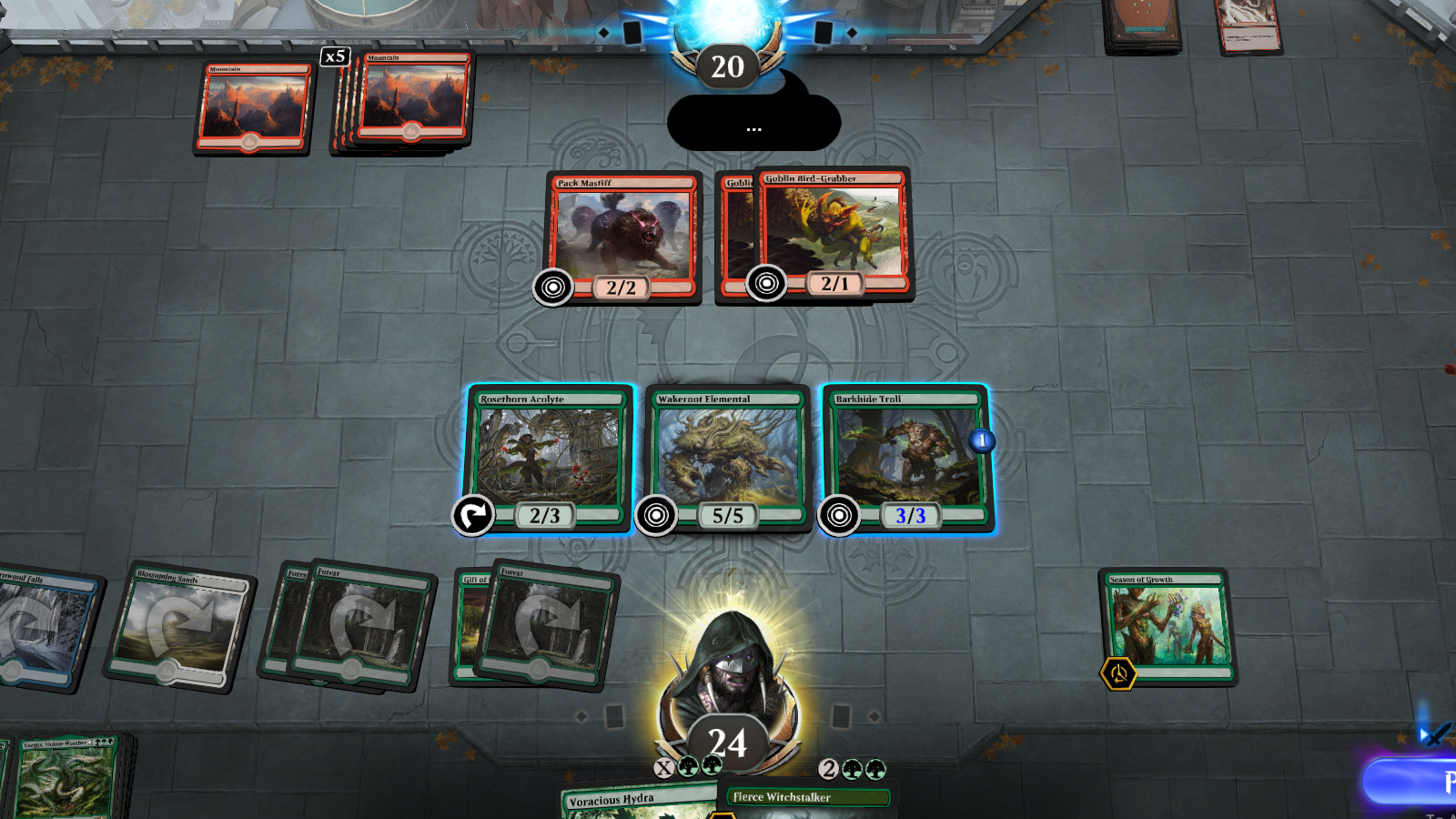
The MTG Arena friends list may stop working for a few common reasons: friend requests fail, a display name or five-digit number does not match exactly, Direct Challenge or Challenge Lobby screens get stuck, the social panel shows outdated information, or Arena is dealing with a server-side issue. If you are trying to add friends, receive requests, or start a match and nothing behaves the way it should, the usual fixes are checking the exact account name and number, restarting the client, updating the game, and making sure your network connection is stable. The MTG Arena friends list is supposed to make playing with friends simple: add a player, send a challenge, pick decks, and start the match. When it works, great. When it does not, you get the full Arena social experience: missing friend requests, stuck challenge screens, mismatched names, and two players staring at menus while insisting they definitely typed everything correctly. Most MTG Arena friends list problems fall into a few buckets. The friend request will not send. The friend does not appear. The display name or five-digit number is wrong. Direct Challenge or Challenge Lobby invites get stuck. The social panel shows outdated information. Or the entire friends list behaves like it has been hit by a very legal, very annoying bounce spell. Wizards has also acknowledged multiple social and challenge-related issues over time, including Direct Challenge mismatched-option behavior, friend requests lingering after acceptance, challenge animations looping, and friend challenge UI problems. So if you are having trouble, it is not always user error. Sometimes the client is simply doing Arena things. This guide focuses on the fixes that matter most to players dealing with friends list and challenge problems, from basic checks and cache clearing to advanced network troubleshooting, bug reporting with logs, and a few habits that help keep the feature working reliably. https://magic.wizards.com/en/mtgarena Gathering Arena Friends List Context The friends list in MTG Arena is tied to your Wizards account display name, your five-digit identifier, the client’s social menu, and the current challenge system. Older guides and many players still say “Direct Challenge,” while newer Arena updates introduced Challenge Lobbies, which unified Friend Challenge and Direct Challenge into one lobby-style system. Wizards announced Challenge Lobbies as a social feature upgrade that lets players create lobbies from the Challenges section of the social menu or invite online friends from the friends list. That matters because some troubleshooting depends on which flow you are using. A friend request issue is different from a challenge issue. A display name problem is different from a server-side social outage. And a challenge that will not start may have nothing to do with your friends list at all. Start with the simplest explanation first. Check spelling, restart the client, confirm the game is updated, then move into cache, reinstall, logs, and support. Quick Checks For MTG Arena Friend List Before deleting files or reinstalling anything, run through the basic fixes. They are boring, yes. They also solve a surprising number of Arena problems, which is somehow both comforting and irritating. First, restart MTG Arena completely. Do not just return to the home screen. Close the client, wait a few seconds, and relaunch it. On mobile, force close the app and reopen it. Next, check the official MTG Arena status page. The status page tracks platform and service components such as Windows, macOS, Android, iOS, Game, Logins, Matches, Social, and Store. If Social, Logins, or Matches are degraded, your friends list may not behave normally no matter what you do locally. Then update the game. If Arena is asking for a small download or restart after a patch, both players should update before trying to add friends or challenge each other. Wizards notes that update and install problems can come from network issues, Windows-level problems, or leftovers from a partial install. Finally, confirm your network is stable. If Arena loads slowly, hangs on menus, or disconnects often, the friends list may only be a symptom. On mobile, Wizards recommends checking the device’s internet connection, toggling Wi-Fi off and on, restarting the device, force closing background apps, updating the app, and reinstalling if needed. Troubleshoot: Add Friends And Display Name Issues Most failed friend requests come down to the display name. Friends list issues in MTG Arena are common because Arena is strict about username formatting. MTG Arena names are not just “PlayerName.” They include the visible display name plus a five-digit number, usually shown in the format DisplayName#12345. Wizards’ Direct Challenge FAQ says players need both the display name and the five-digit number associated with the account. It also notes that display names are case sensitive, which means DragonFan#12345 and dragonfan#12345 may not be treated the same. Check these details before assuming the friends list is broken: Make sure the display name is typed exactly as shown. Confirm capitalization. Confirm the five-digit number separately. Do not include extra spaces before or after the name. Make sure your friend is sending you the correct account name, not the name from an old or secondary account. That last point matters. Wizards explains that two accounts can have the same display name text but different five-digit identifiers, such as SameDisplayName#12345 and SameDisplayName#54321. If a player accidentally logs into or creates a secondary account, the friends list lookup will not point to the account they actually use. The safest method is to have your friend copy their full Arena name from the client and send it to you outside the game. If they type it manually, ask for a screenshot. It feels overly cautious until you lose ten minutes to one lowercase letter. Step-by-Step: Add Friends To add a friend in MTG Arena, use the friends list panel rather than guessing from the main Play menu. Open the Friends List panel, usually found at the bottom-left of the Arena client. Click the plus sign at the top right of the friends list. Enter the exact Arena username for the person you want to